


A Comprehensive Guide to Setting Up and Using Clawdbot for Efficient Appointment Scheduling

Booking calls and setting appointments can quickly become overwhelming without the right tools. Clawdbot, also known as OpenClaw, offers a smart solution designed to simplify and speed up this process. This guide walks you through setting up Clawdbot, explores its key features, shows practical ways to use it for scheduling, and shares security tips to keep your data safe.
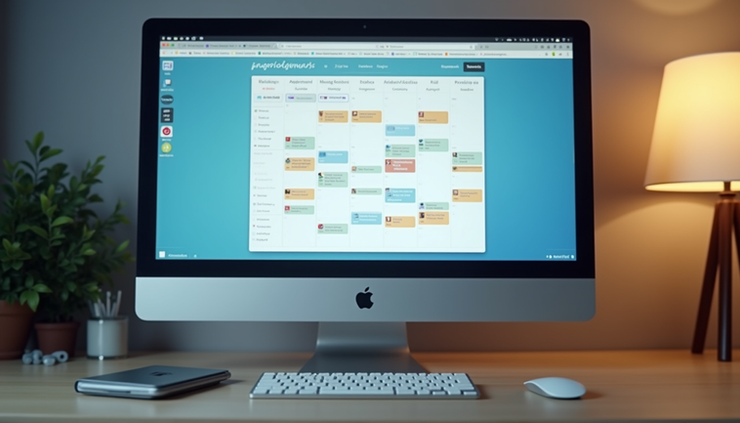
Clawdbot interface showing calendar and appointment options
Setting Up Clawdbot Step by Step
Getting started with Clawdbot is straightforward. Follow these steps to have it ready for your appointment scheduling needs:
Create an Account
Visit the Clawdbot website and sign up with your email. Confirm your account through the verification email.
Connect Your Calendar
Link your existing calendar (Google Calendar, Outlook, etc.) to Clawdbot. This syncs your availability and prevents double bookings.
Configure Your Availability
Set your working hours and preferred meeting times. Clawdbot uses this to offer only suitable slots to your contacts.
Customize Appointment Types
Define different types of appointments (e.g., 15-minute calls, 30-minute meetings) with descriptions and buffer times.
Set Up Notifications
Choose how you want to receive reminders and confirmations—via email, SMS, or app notifications.
Integrate with Communication Tools
Connect Clawdbot with your preferred video conferencing tools like Zoom or Microsoft Teams for automatic meeting links.
Test Your Setup
Use the test booking feature to simulate an appointment and ensure everything works smoothly.
Once set up, Clawdbot runs in the background, handling appointment requests and confirmations.
Key Features of Clawdbot That Boost Scheduling Efficiency
Clawdbot offers several features that make booking calls easier and more reliable:
Automated Scheduling
It automatically finds open slots based on your calendar and preferences, eliminating back-and-forth emails.
Real-Time Availability Updates
Changes in your calendar reflect immediately, so invitees see only current openings.
Customizable Booking Pages
Personalize your booking page with branding, instructions, and appointment types to match your style.
Multi-Channel Notifications
Reminders and confirmations reduce no-shows by keeping both parties informed.
Time Zone Detection
Automatically adjusts appointment times to the invitee’s time zone, avoiding confusion.
Integration with CRM and Email Platforms
Syncs with tools like Salesforce or Mailchimp to keep your contacts and appointments organized.
Group Scheduling Options
Allows multiple participants to book a meeting together, useful for team calls or webinars.
Practical Examples of Using Clawdbot for Scheduling
Clawdbot fits many scenarios where scheduling is key. Here are some real-world examples:
Sales Teams Booking Client Calls
Sales reps share their Clawdbot link with prospects. The bot shows available times, books the call, and sends reminders, freeing reps to focus on selling.
Consultants Managing Multiple Clients
Consultants set different appointment types for initial consultations and follow-ups. Clawdbot handles bookings and integrates with Zoom for virtual meetings.
Freelancers Scheduling Project Discussions
Freelancers use Clawdbot to let clients pick times for project updates, avoiding email chains and missed messages.
Healthcare Providers Setting Patient Appointments
Clinics use Clawdbot to offer patients easy online booking, reducing phone traffic and scheduling errors.
Educational Tutors Arranging Sessions
Tutors share their availability with students worldwide. Clawdbot adjusts for time zones and sends automatic reminders.
These examples show how Clawdbot saves time and improves the appointment experience for both users and their contacts.
Best Security Practices for Safe Clawdbot Usage
Keeping your scheduling data secure is essential. Follow these tips to protect your information when using Clawdbot:
Use Strong, Unique Passwords
Avoid reusing passwords. Consider a password manager to generate and store complex passwords.
Enable Two-Factor Authentication (2FA)
Add an extra layer of security by requiring a second verification step during login.
Regularly Review Connected Apps
Check which apps have access to your Clawdbot account and revoke any that are no longer needed.
Limit Data Sharing
Only share your booking link with trusted contacts or embed it on secure websites.
Keep Software Updated
Use the latest version of Clawdbot and your connected apps to benefit from security patches.
Monitor Account Activity
Watch for unusual login attempts or changes in your account settings.
Backup Important Data
Export your appointment data regularly to avoid loss in case of technical issues.
By following these practices, you can confidently use Clawdbot without compromising your privacy or security.
If you have any questions about Clawdbot or OpenClaw hit me up and we will figure out a solution together!


Comments